

Lokalisasi sejati melampaui kata-kata; ia membutuhkan penyelarasan visual dengan standar tipografi lokal. Font yang terlihat bagus dalam bahasa Inggris (skrip Latin) mungkin terlihat buruk dalam bahasa Hindi (Devanagari) atau Arab. MultiLipi memungkinkan Anda menyuntikkan Google Fonts untuk bahasa tertentu, memastikan halaman terjemahan Anda terasa asli dan dapat dipercaya.
Panduan ini merinci protokol yang tepat untuk mengambil aset font dari Google dan mengonfigurasinya di pusat perintah MultiLipi Anda.
1. Persiapan Aset (Google Fonts)
Sebelum mengonfigurasi dasbor, Anda harus menghasilkan endpoint font yang benar dari Google.
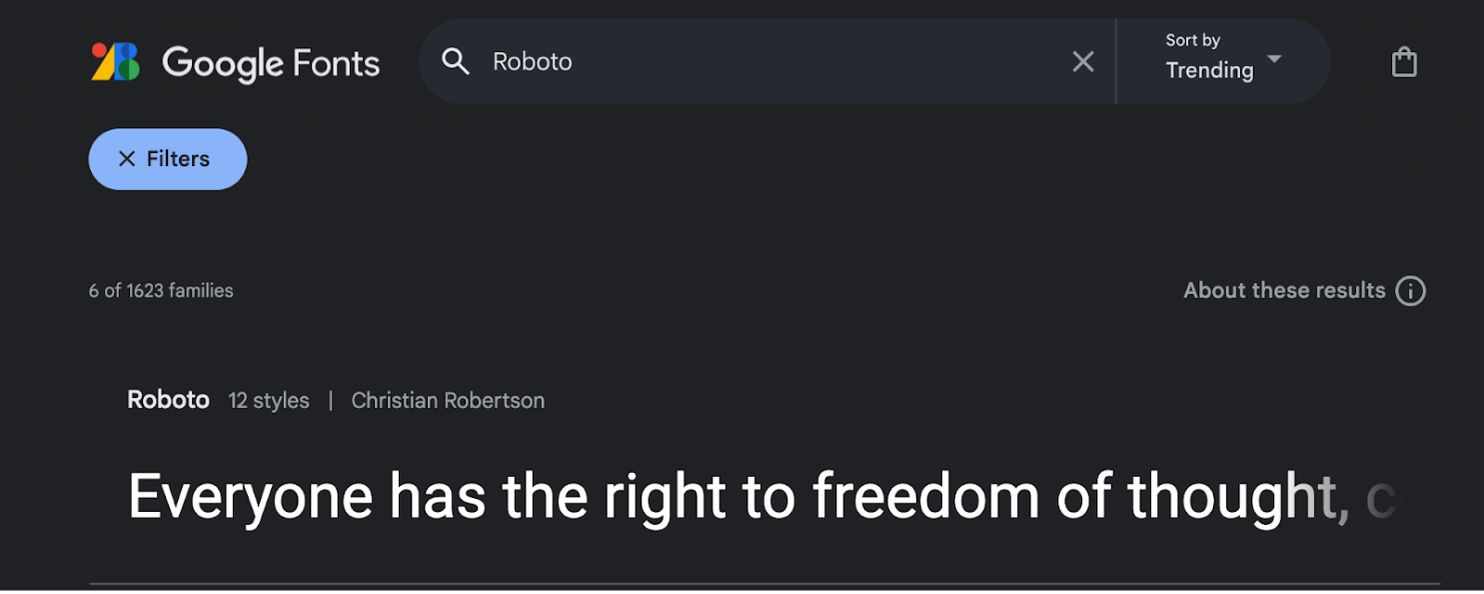
Pilih Keluarga Font:
- •Arahkan ke Google Fonts.
- •Cari jenis huruf yang Anda inginkan (misalnya,
"Roboto"or"Baloo 2"). - •Klik pada kartu font untuk membuka detailnya.
Pilih Gaya:
- •Klik "Dapatkan font" tombol di sudut kanan atas.
- •Pada halaman konfigurasi, klik "Dapatkan kode sematan".
Hasilkan Tautan Impor:
- •Di panel kiri, pilih bobot/gaya tertentu yang Anda perlukan (misalnya,
Reguler 400,Tebal 700). - •Langkah Penting: Pada panel kanan, pilih "Web" dan pastikan Anda mengklik
"@import"(bukan "link"). - •Salin URL yang dihasilkan di blok kode.
2. Konfigurasi Infrastruktur
Setelah Anda memiliki tautan aset, masukkan ke dalam mesin terjemahan.
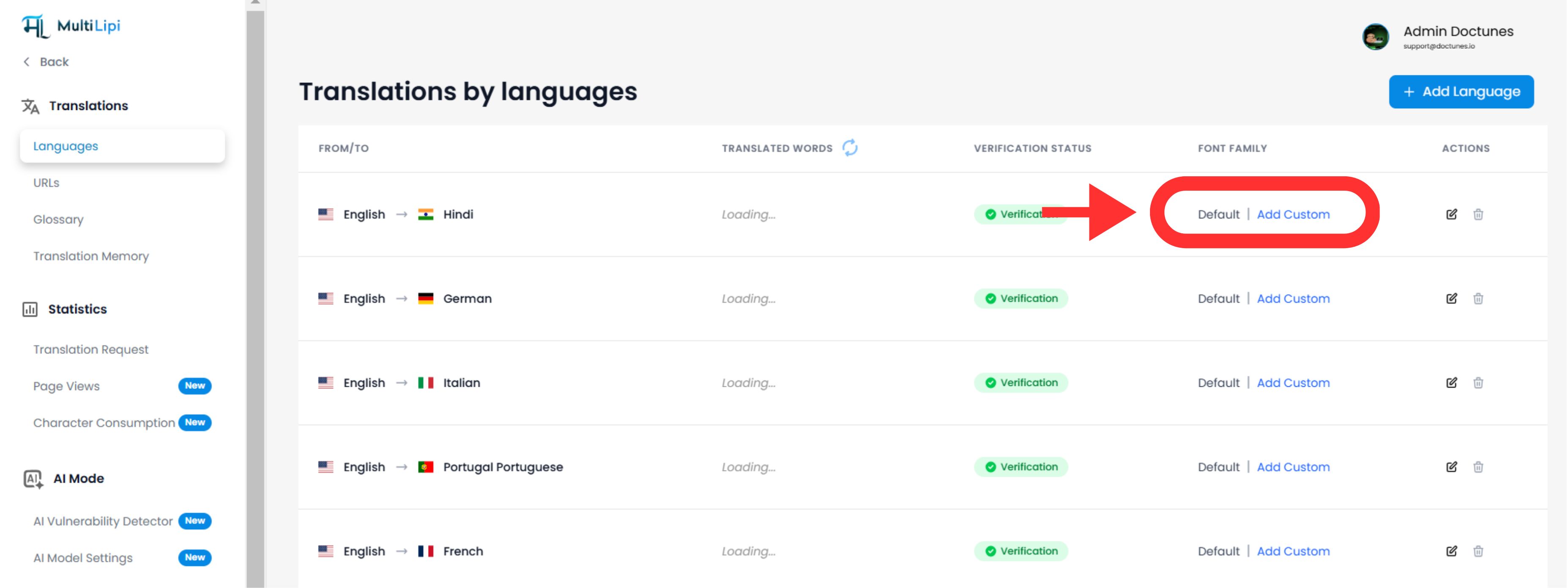
Navigasi ke Pengaturan Bahasa:
- •Masuk ke panel admin MultiLipi Anda.
- •Di bilah sisi kiri, klik Bahasa di bawah Terjemahan bagian.
Mulai Injeksi Font:
- •Temukan baris bahasa tertentu yang ingin Anda ubah (misalnya, Hindi).
- •Klik
"Tambah Font"tombol di sebelah bahasa tersebut.
Terapkan Aset:
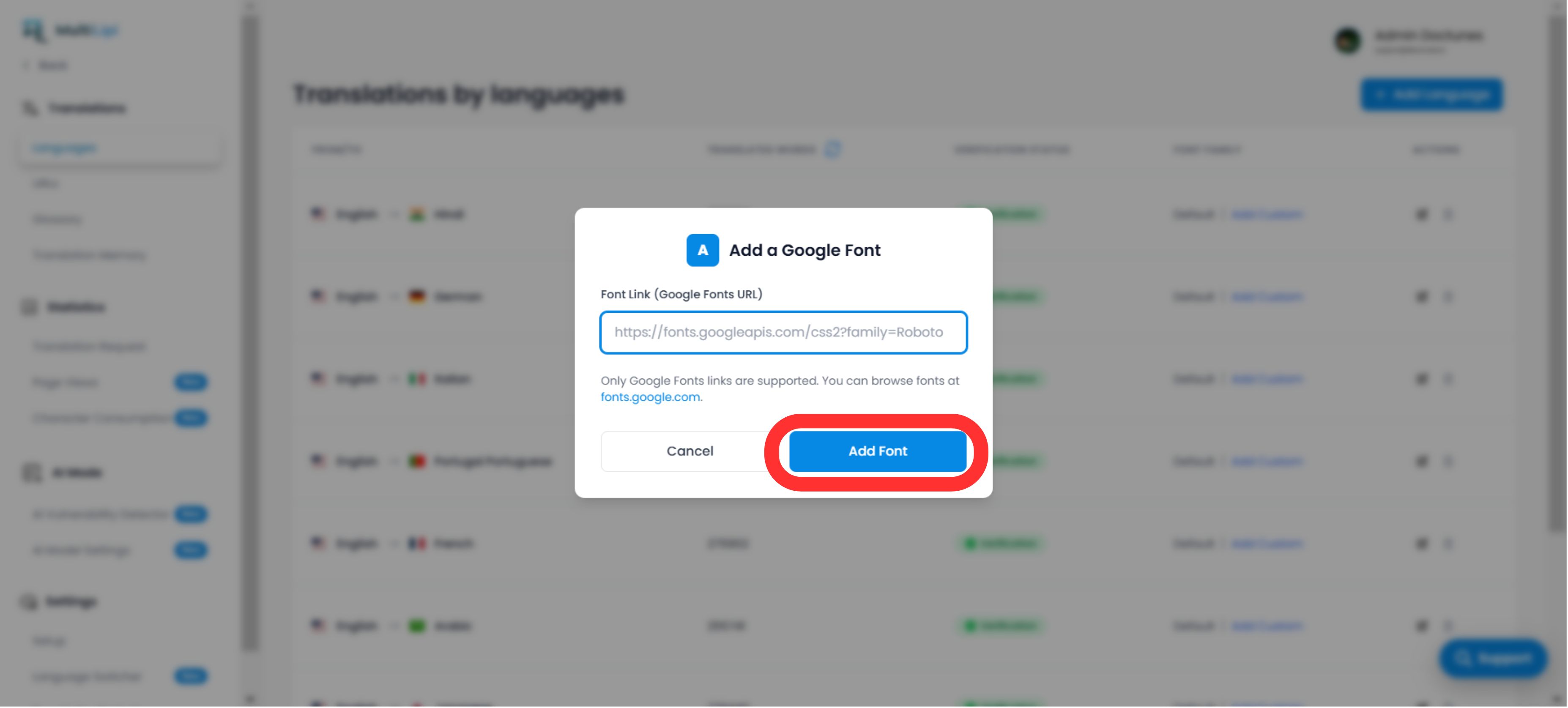
- •Akan muncul jendela modal pop-up.
- •Tempel: Masukkan URL Google Font yang Anda salin pada Langkah 1.
- •Jalankan: Klik
Kirim.
3. Validasi & Rendering
Penyebaran Segera:
Setelah dikirimkan, font tersebut otomatis diterapkan ke versi bahasa situs Anda yang spesifik. Tidak diperlukan perubahan kode CSS atau manual.
Fallback Default:
Jika tidak ada font kustom yang ditambahkan untuk suatu bahasa, sistem akan terus merender keluarga font default.
Catatan Teknis:
- •Pastikan Anda menempelkan URL Google Fonts yang valid.
- •Sistem menerapkan font ini hanya ke bahasa target, mempertahankan desain asli Anda untuk bahasa sumber.