
Kolaborasi sangat penting untuk skala global, tetapi keamanan data adalah yang terpenting. MultiLipi's Ruang Kerja Tim memungkinkan Anda menyediakan akses ke penerjemah, pengembang, dan manajer proyek tanpa membagikan kredensial login yang sensitif. Anda dapat menetapkan izin terperinci , memastikan anggota tim berinteraksi hanya dengan proyek dan alat tertentu yang diperlukan untuk peran mereka.
Blueprint ini mencakup siklus hidup manajemen pengguna: Penyediaan , Audit , dan Deprovisi .
Kontrol Akses Berbasis Peran (RBAC)
Jangan pernah membagikan kredensial master Anda. Sebaliknya, buat akun individual dengan izin yang disesuaikan dengan tanggung jawab setiap pengguna. Ini memastikan jejak audit penuh dan kemampuan untuk mencabut akses secara instan ketika anggota tim beralih.
1. Mengakses Direktori Tim
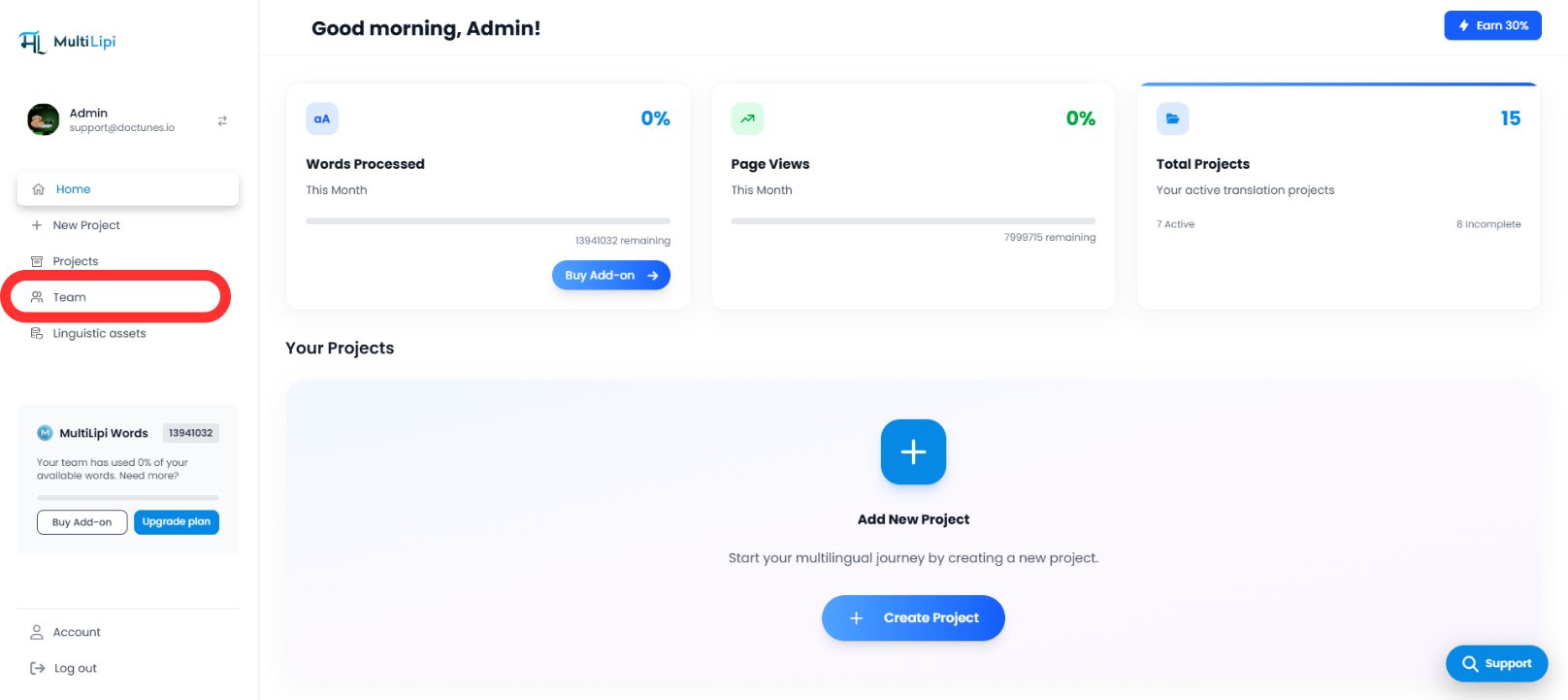
Tab Tim berfungsi sebagai pusat komando untuk semua izin pengguna.
Navigasi
Dari bilah sisi Dasbor MultiLipi Anda, pilih Tim .
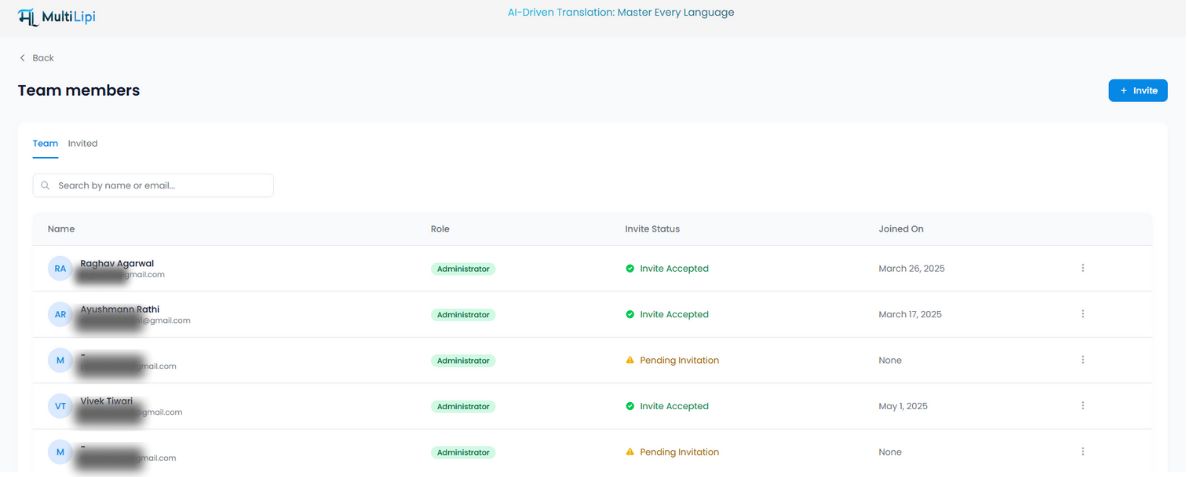
Tampilan Audit
Anda akan melihat tabel terpadu yang mencantumkan semua pengguna aktif, peran yang ditugaskan, cakupan akses (domain tertentu), dan status saat ini ( Aktif vs. Undangan Tertunda ).
2. Menyediakan Akses (Mengundang Anggota)
Untuk mengonfirmasi kolaborator baru:
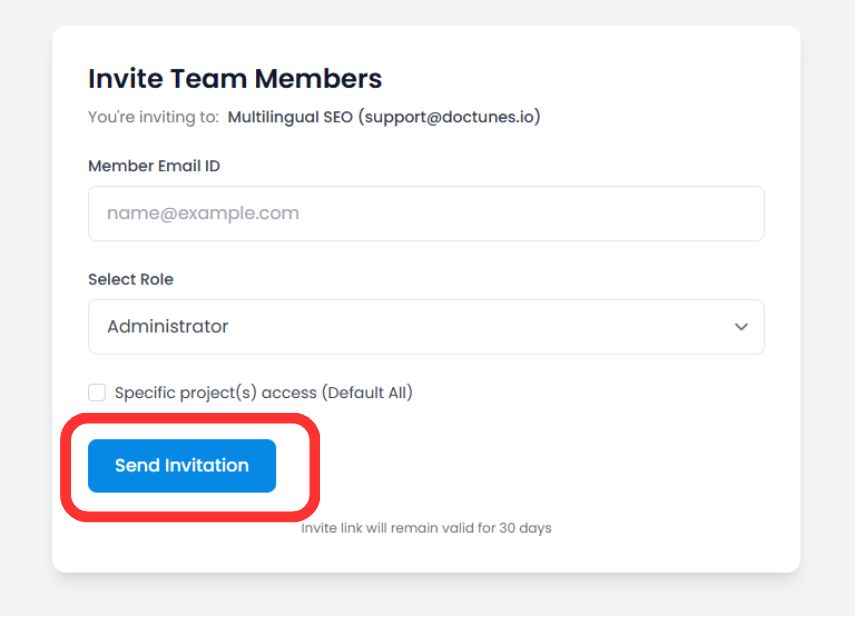
Mulai Undangan
Klik Undang tombol di sudut kanan atas ruang kerja.
Tentukan Kredensial
Masukkan alamat email perusahaan pengguna.
Penugasan Peran
Pilih tingkat hak istimewa yang sesuai (misalnya, Administrator untuk kontrol penuh, Kontributor hanya untuk pengeditan terjemahan).
Cakupan Proyek (Opsional)
Batasi pengguna ke domain tertentu (misalnya, Tetapkan "Penerjemah A" hanya ke proyek Jerman).
Sebarkan Undangan
Klik Undang via Email .
Catatan Keamanan
Tautan undangan aman kedaluwarsa secara otomatis dalam 30 hari untuk mencegah akses tidak sah dari tautan yang sudah usang.
3. Mengelola Siklus Hidup Akses
Tata kelola adalah proses berkelanjutan. Anda dapat mengubah atau mencabut izin secara instan saat struktur tim berubah.
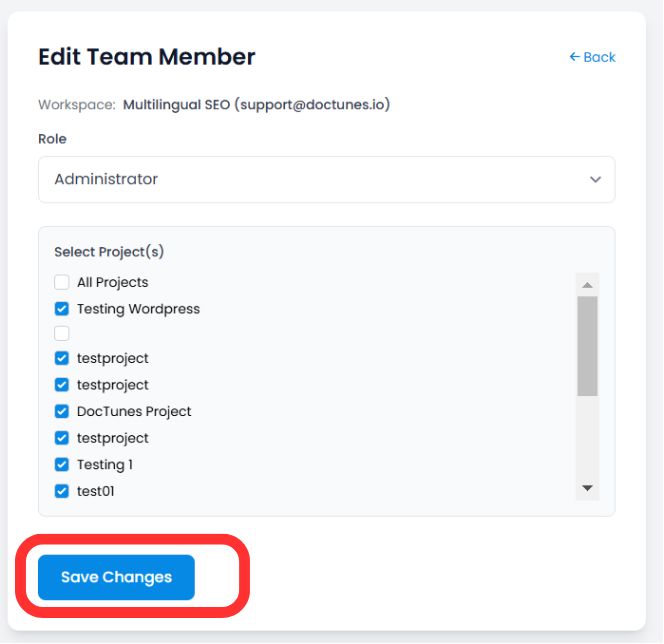
Memodifikasi Peran (Fungsi "Edit")
Jika pengguna memerlukan hak istimewa yang ditinggikan atau akses ke proyek baru:
Temukan pengguna di Tim tabel.
Klik Tiga Titik (⋮) ikon di kolom Tindakan.
Pilih Edit .
Perbarui Peran or Penugasan Proyek dan klik Simpan Perubahan . Izin baru berlaku segera.
Pencabutan Akses (Offboarding)
Saat anggota tim keluar atau kontrak berakhir, amankan akun mereka segera:
Langkah 1
Klik Ikon Sampah/Hapus di kolom Tindakan.
Langkah 2
Konfirmasikan penghapusan.
Dampak
Sesi pengguna dihentikan, dan mereka kehilangan akses ke dasbor seketika .
Ringkasan: Praktik Terbaik Kolaborasi
| Tindakan | Praktik Terbaik |
|---|---|
| Penugasan Peran | Gunakan Prinsip Hak Akses Terkecil . Hanya berikan akses Administrator kepada pemangku kepentingan tepercaya. |
| Penetapan Ruang Lingkup Proyek | Isolasi agen eksternal ke proyek tertentu untuk mencegah mereka melihat data yang tidak terkait. |
| Audit Berkala | Tinjau tab Tim bulanan untuk menghapus pengguna yang tidak aktif atau undangan yang tertunda. |
🔒 Keamanan dalam Skala Besar: Dengan menerapkan RBAC granular, Anda memastikan bahwa operasi terjemahan Anda dapat diskalakan secara global tanpa mengorbankan integritas data atau mengekspos informasi proyek sensitif kepada anggota tim yang tidak berwenang.